
Stay in your flow
File an observation quickly without switching back and forth or manually starting a new thread in your AI tool.
Spot something while testing? Capture it, add a quick note, and your AI agent takes care of it in the background while you continue testing (Codex, Claude Code, or Grok Bot). ScreenClip keeps your reports and fixes together, so you can track what’s ready to retest.
Capture instantly with ⌘⇧2 — or set your own shortcut.
Mac download coming soon.
Why ScreenClip
File an observation quickly without switching back and forth or manually starting a new thread in your AI tool.
Capture small bugs, awkward details, and ideas as you notice them, so they don’t get lost while you test.
Keep captures with their reports instead of leaving screenshots scattered across your desktop.
How it works
Three steps from observation to retest.
Select an area of a Mac app or website. Add a note or markup if you want.
Choose Codex, Claude Code, or Grok Bot and submit your report.
Track the pull request in ScreenClip, then retest. Automatic merge is optional.
See the work in progress
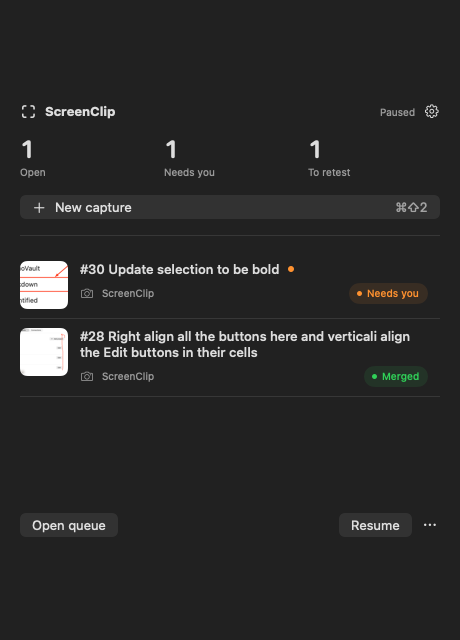
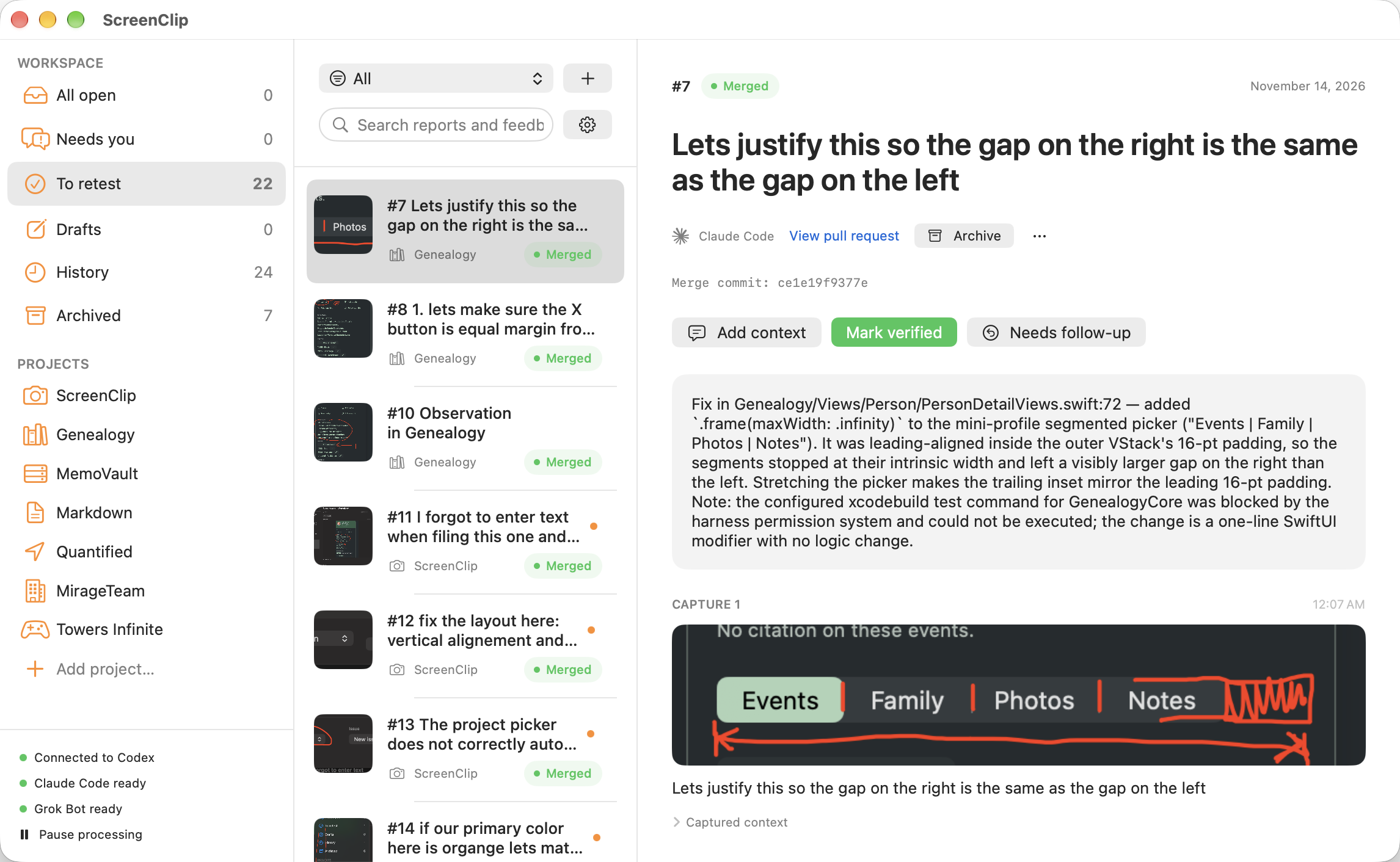
Keep testing while your coding agent works. ScreenClip shows your reports, their status, and the pull request, so you can see what needs attention and what is ready to retest.
Coding agents
Choose a default in Settings, or pick an agent for a new report. A follow-up capture stays with that report’s agent.
On this Mac, in an isolated Git worktree. It does not push or open the pull request itself. ScreenClip runs your validation command and opens it. You answer questions on the report.
On this Mac, in its own Git worktree. ScreenClip opens the pull request. Questions show up on the report, and you answer them there.
Remote. Nothing is sent until you save a webhook and turn on sending for that project. Grok Bot opens the pull request from the branch ScreenClip pushed. Questions stay in Grok Bot’s chat.
Download
Free for noncommercial use.
The source is not public yet.
Leave ScreenClip running, and the Mac awake, while Codex or Claude Code works. Grok Bot keeps working if the Mac sleeps. ScreenClip updates that pull request the next time it is open.
Read the privacy policy for what stays on your Mac and what can leave.
ScreenClip is a macOS menu bar app. Press Command-Shift-2, select a region of a website or a Mac app, add a note or markup if you want, and submit. The report goes to Codex, Claude Code, or Grok Bot. For Codex and Claude Code, ScreenClip runs your project’s validation command and opens the GitHub pull request. Grok Bot opens the pull request from the branch ScreenClip pushed, and ScreenClip tracks it. With automatic merge enabled, ScreenClip merges after validation, checks, and review rules pass. Merged reports move to To retest.
Codex, Claude Code, and Grok Bot. Codex and Claude Code run on your Mac, in an isolated Git worktree, and do not push or open the pull request themselves. Grok Bot is remote: you save a webhook, and each project has to opt in before screenshots are sent. Choose a default agent in Settings, or pick one for a new report. A follow-up capture stays with that report’s agent.
No. Capture a clipped control, confusing copy, awkward spacing, or an idea for later. A screenshot alone is enough.
macOS 14 or later, a local Git repository, and one agent: Codex CLI with app-server, Claude Code, or a Grok Bot webhook. The GitHub CLI is required to open pull requests, and to send screenshots to Grok Bot. Grant Screen Recording permission for the region you select. Leave ScreenClip running, and the Mac awake, while Codex or Claude Code works. Grok Bot keeps working if the Mac sleeps, and the pull request status updates the next time ScreenClip is running. Building from source also needs Xcode 16 or later.
ScreenClip does not upload Codex or Claude Code reports. It hands the approved screenshot and note to the agent on your Mac, and that agent may send them to the account you signed into. GitHub receives the branch and pull request opened with your GitHub CLI. Screenshots are not attached to that pull request by default. Grok Bot receives approved screenshots only after you save a webhook and turn on sending for that project. There is no ScreenClip analytics. The privacy policy has the full list.
A redaction is a rectangle you draw with the redact tool. ScreenClip flattens it to opaque black. Arrows, pen strokes, shapes, and text do not hide the pixels underneath. If a capture has a redaction, the unredacted crop is not kept and is not sent.
Not unless you enable automatic merge for that project. ScreenClip then merges only after its own validation and the pull request’s checks and review rules pass. It does not bypass required reviews. A merge is not a deploy. You retest from To retest, and a new capture on the same report continues the work.
Codex and Claude Code questions appear on the report, and you reply there. Grok Bot questions stay in its chat. Cancel stops the local record and can request cancellation from a supported Grok Bot connection, but the remote run may still finish.
Free for noncommercial use; commercial licensing is available on request.
Not yet. This page will link the Mac download when a release is published.
Yes. Capture a region of a website or a native Mac app. Register a repository and associate it with website addresses or app bundle IDs. You can change the project before you submit. If the project is ambiguous, ScreenClip saves the report and waits instead of guessing a repository.